 REFLIB
User guide
Everything REFLIB does, in the order you'll meet it. Names in bold are the labels you see on screen.
Getting started
The first launch asks two things: which language you want (English or Traditional Chinese) and that you've read the terms and privacy policy. Nothing is set up on a server because there is no server.
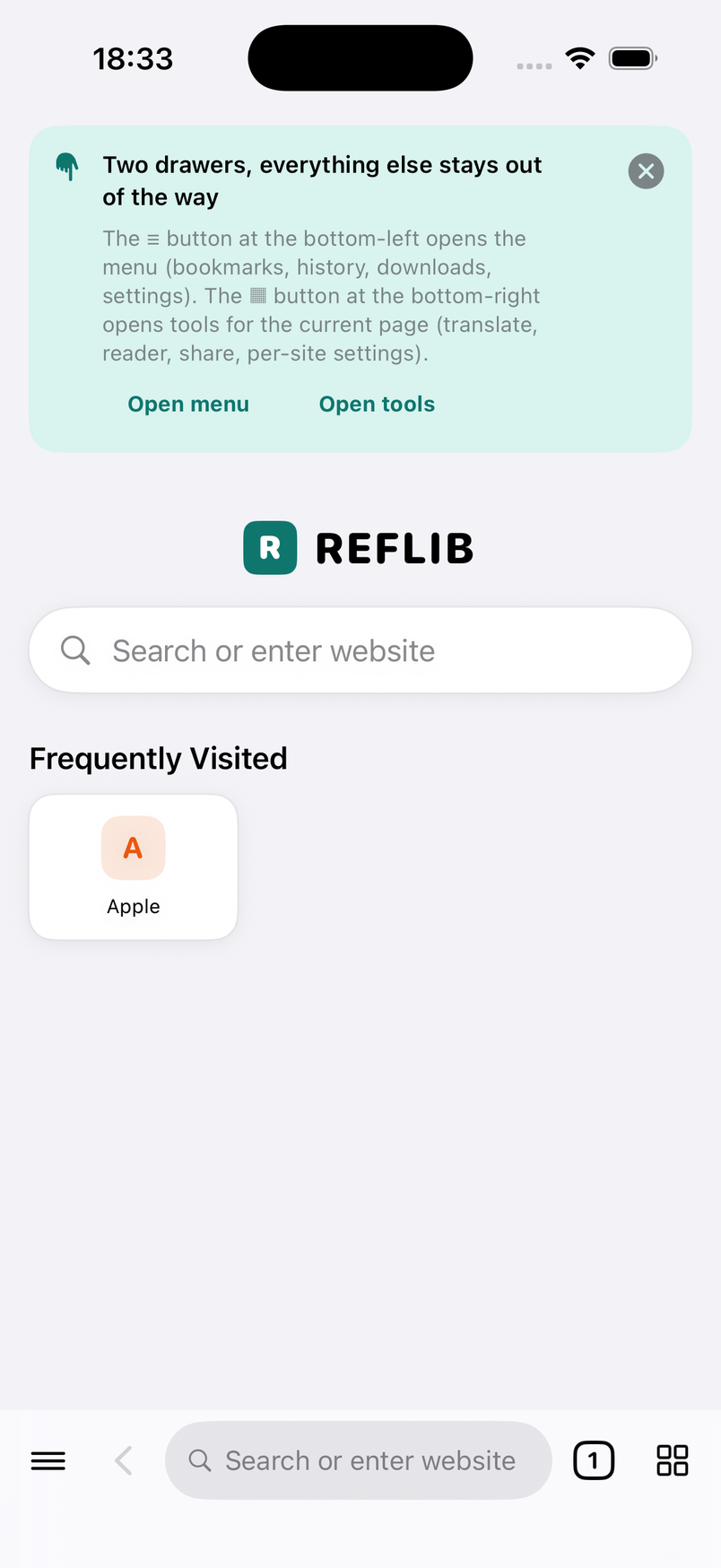
You land on the start page: a search pill, your most-visited sites once you have some history, your bookmarks, and recently closed tabs. Tap the pill or the address bar to type a web address or a search.
The bottom bar
The bar is the only permanent control. From left to right: ≡ menu (opens the left drawer), ‹ back, the address pill, the tab count (opens the tab switcher), and ▦ page tools (opens the right drawer).
Long-press ‹ for the back history of this tab. Swipe left or right on the pill to switch between open tabs. The bar collapses to a thin strip while you scroll down and comes back when you scroll up or tap it; turn this off under Settings › General if you prefer it always visible.
The pill shows the site name with a lock (HTTPS) or an open lock (HTTP), a reader icon when the page can be read in Reader, a translate badge when the page is translated, and reload/stop.
Menu drawer (left)
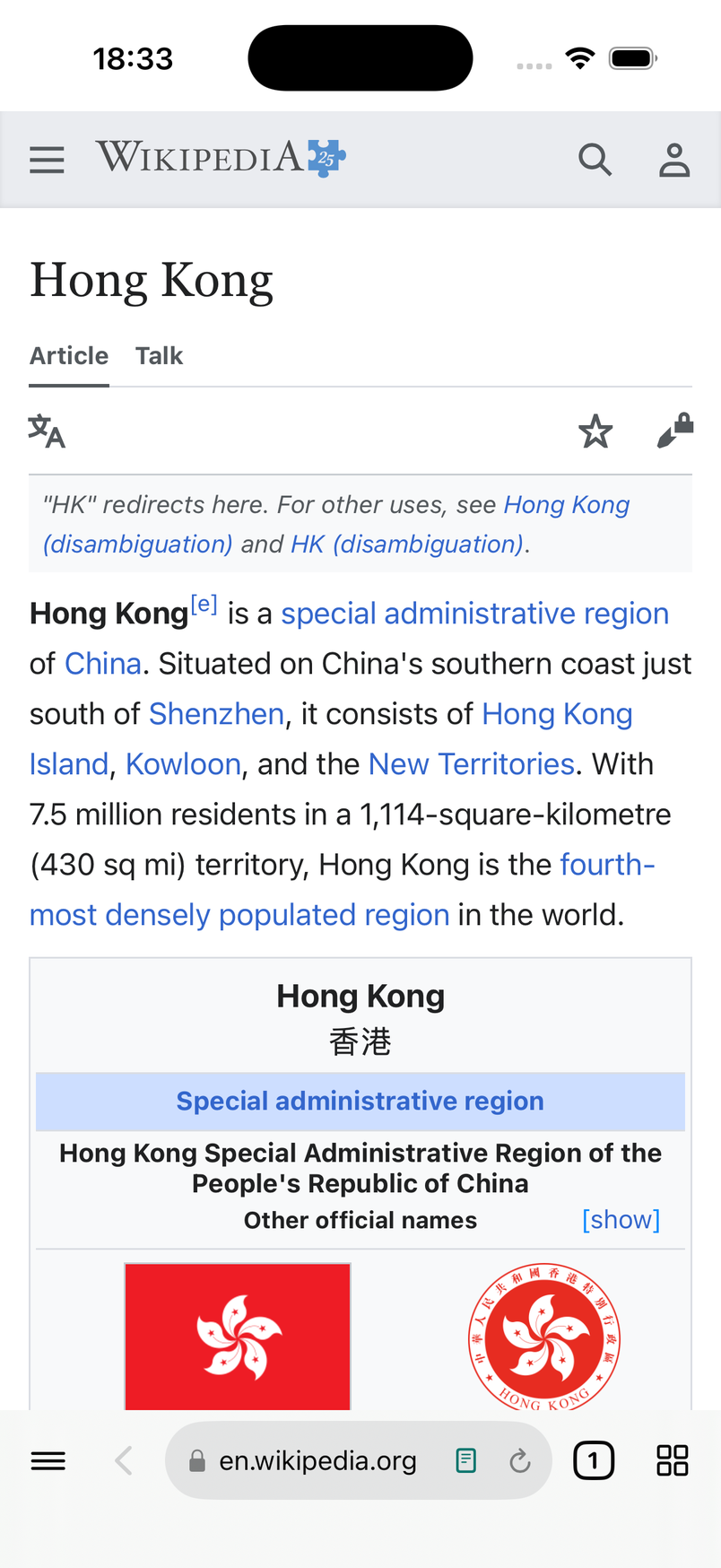
Swipe from the left edge or tap ≡. The drawer has three groups. Browse: new tab, private browsing on/off, tabs, scan a QR code. Library: bookmarks, history, reading list, downloads, screenshots. More: browsing insights and settings.
Counts on the right of a row (open tabs, downloads in progress, screenshots) update live.
Page tools drawer (right)
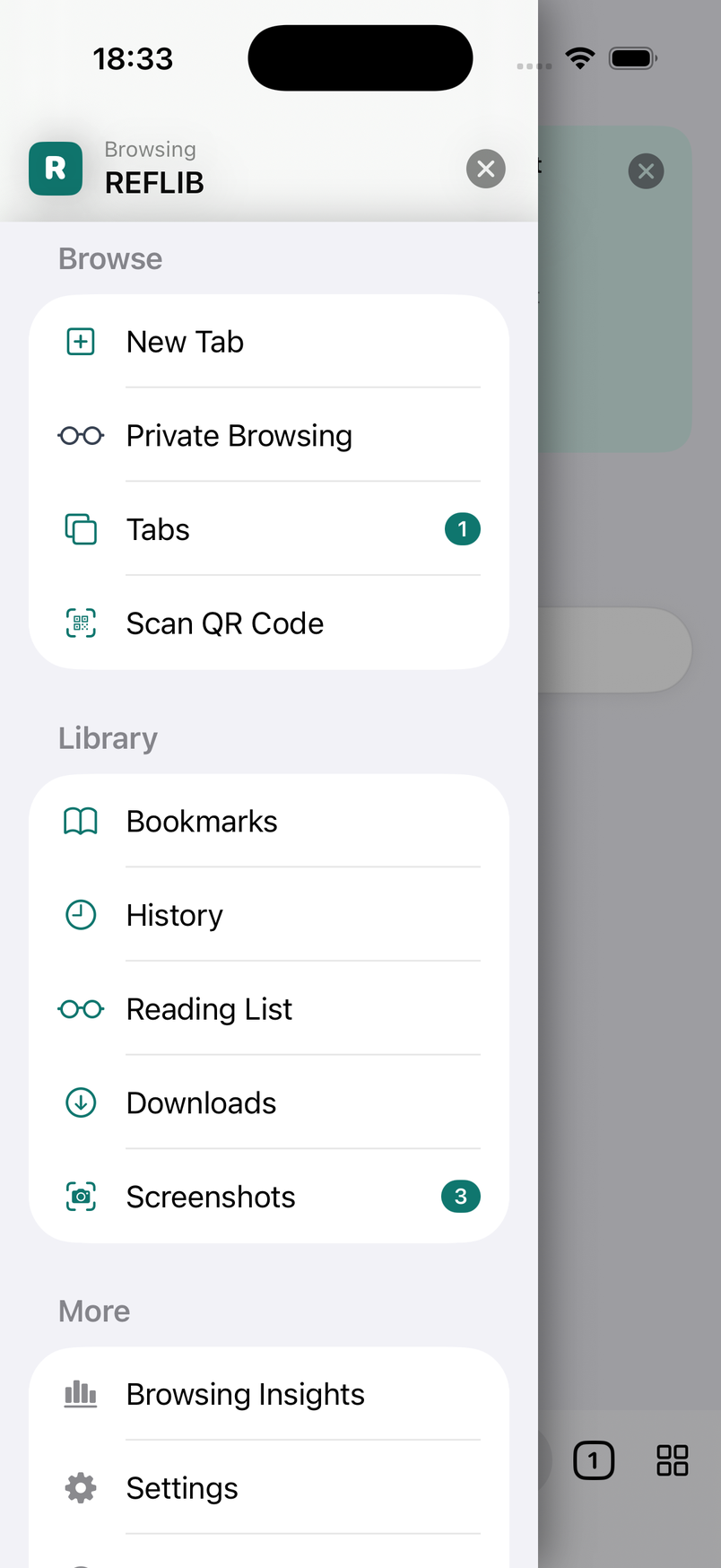
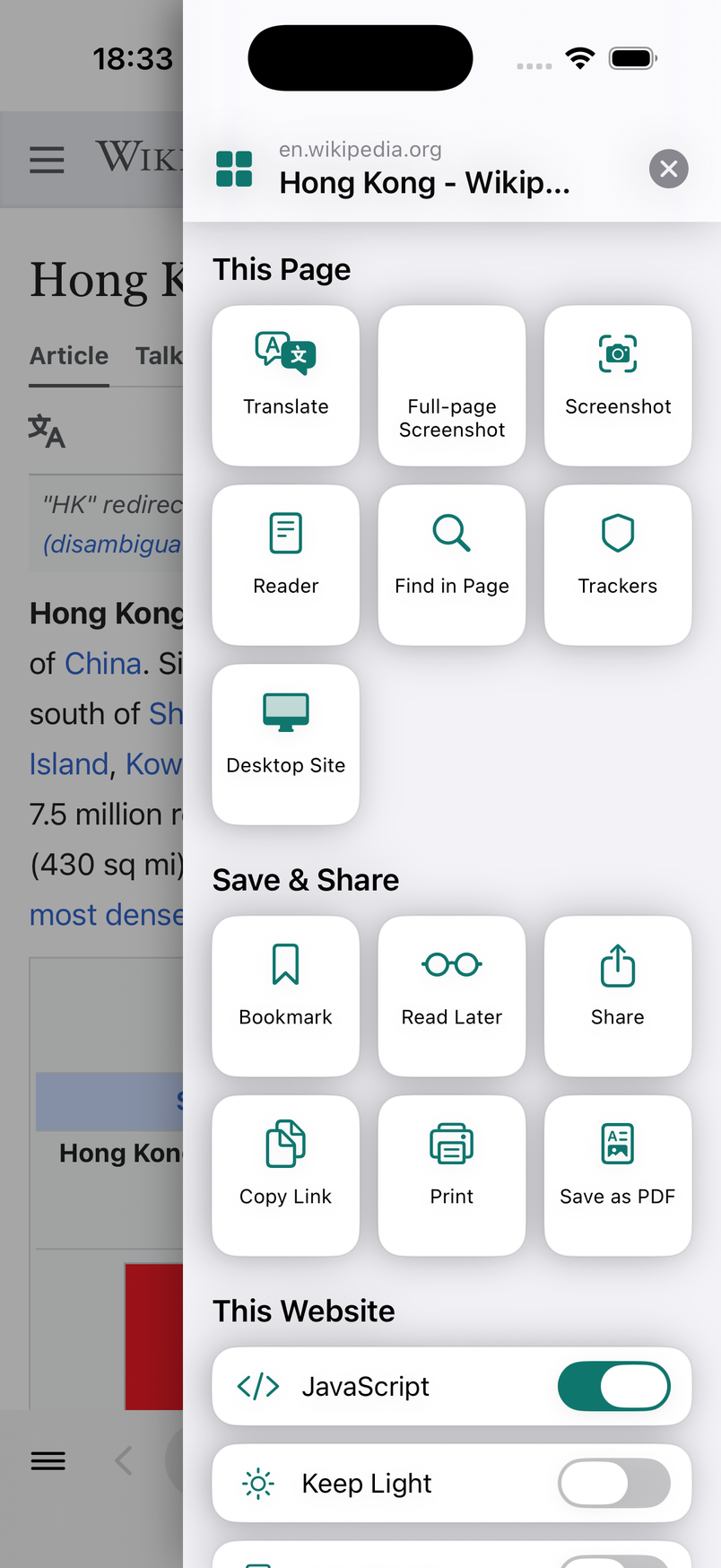
Swipe from the right edge or tap ▦. Tiles are grouped: This page — translate (long-press to pick Apple or Google), full-page screenshot, screenshot, reader mode, find in page, trackers blocked, desktop/mobile site. Save & share — bookmark, read later, share, copy link, print, save as PDF. This website — JavaScript, keep light appearance, automatic Reader and zoom, remembered per site.
The header shows the site and page title; tapping it opens the trackers report for this page.
Tabs, groups and private browsing
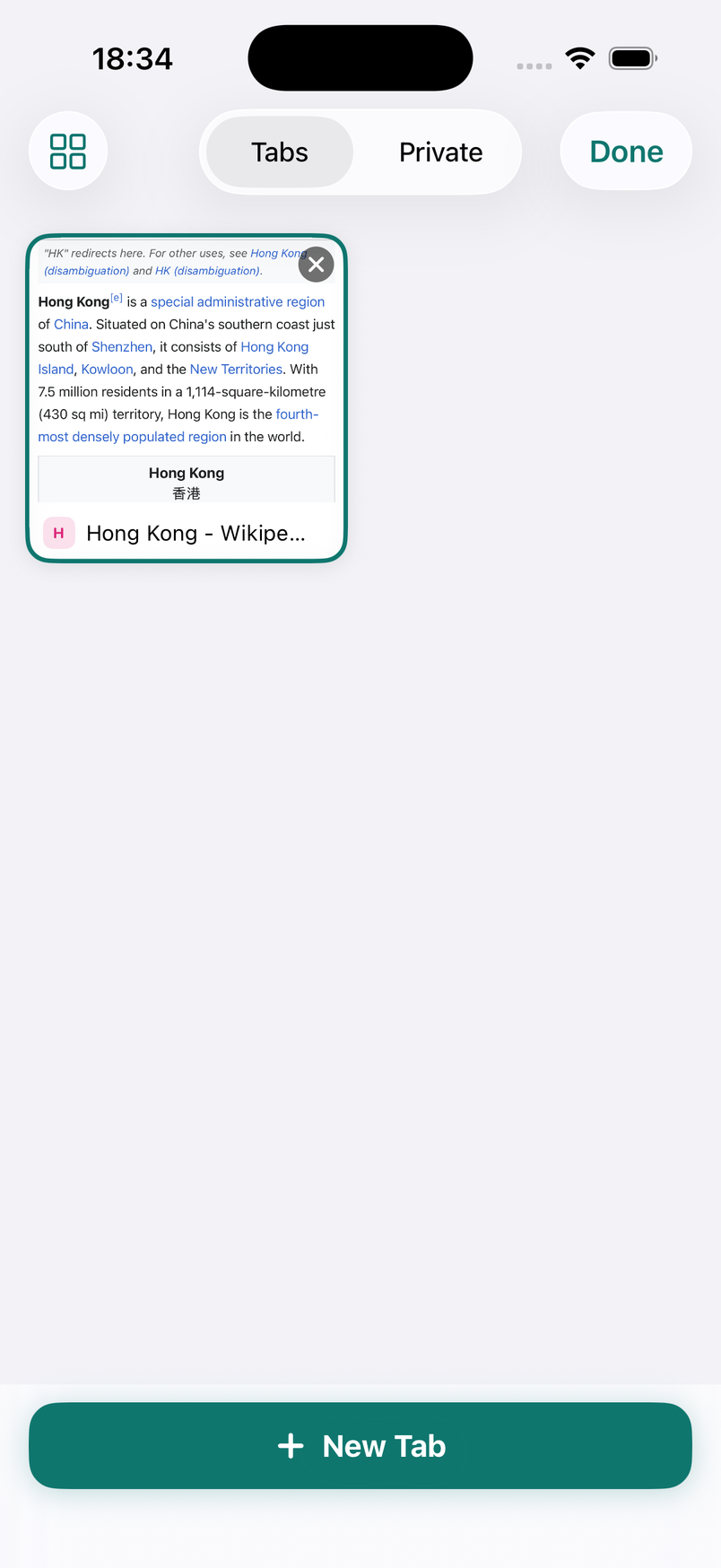
The tab switcher shows tabs as cards with a live snapshot. Swipe a card away to close it. Tabs can be gathered into named groups from the card's menu; recently closed tabs can be reopened from the menu at the top.
Private browsing uses a separate, memory-only data store: no history, no cookies kept, no snapshots on disk. Closing the last private tab discards everything. The bar and drawers turn dark so you always know which mode you're in.
Under Settings › Permissions you can turn on Private Tab Lock: leaving private tabs (or sending the app to the background) locks them, and coming back asks for Face ID, Touch ID or your passcode. It's off by default.
Close idle tabs (Settings › General) closes normal tabs you haven't opened for a day, a week or a month. It's off by default, and never touches the current tab or private tabs.
Address bar and search
Type a domain to open it, anything else to search. As you type, REFLIB completes addresses inline from your bookmarks and history and lists local matches. Search suggestions from the engine are off by default — turning them on sends every keystroke to the engine.
The default search engine is RefLib Search (www.reflib.net), an independent service that receives only your search terms. Switch to DuckDuckGo, Google or Bing, or add your own with a %s template, under Settings › Search.
By default REFLIB strips known tracking parameters (utm_*, fbclid, gclid …) from addresses and tries HTTPS first for plain domains. Both are toggles in Settings › Privacy.
Downloads
REFLIB downloads a file only when you ask: long-press a link and choose Download Link, tap Save File when a page is itself a file (PDF, video, archive), or when a site serves a file as an attachment. It does not sniff or capture streaming media embedded in pages.
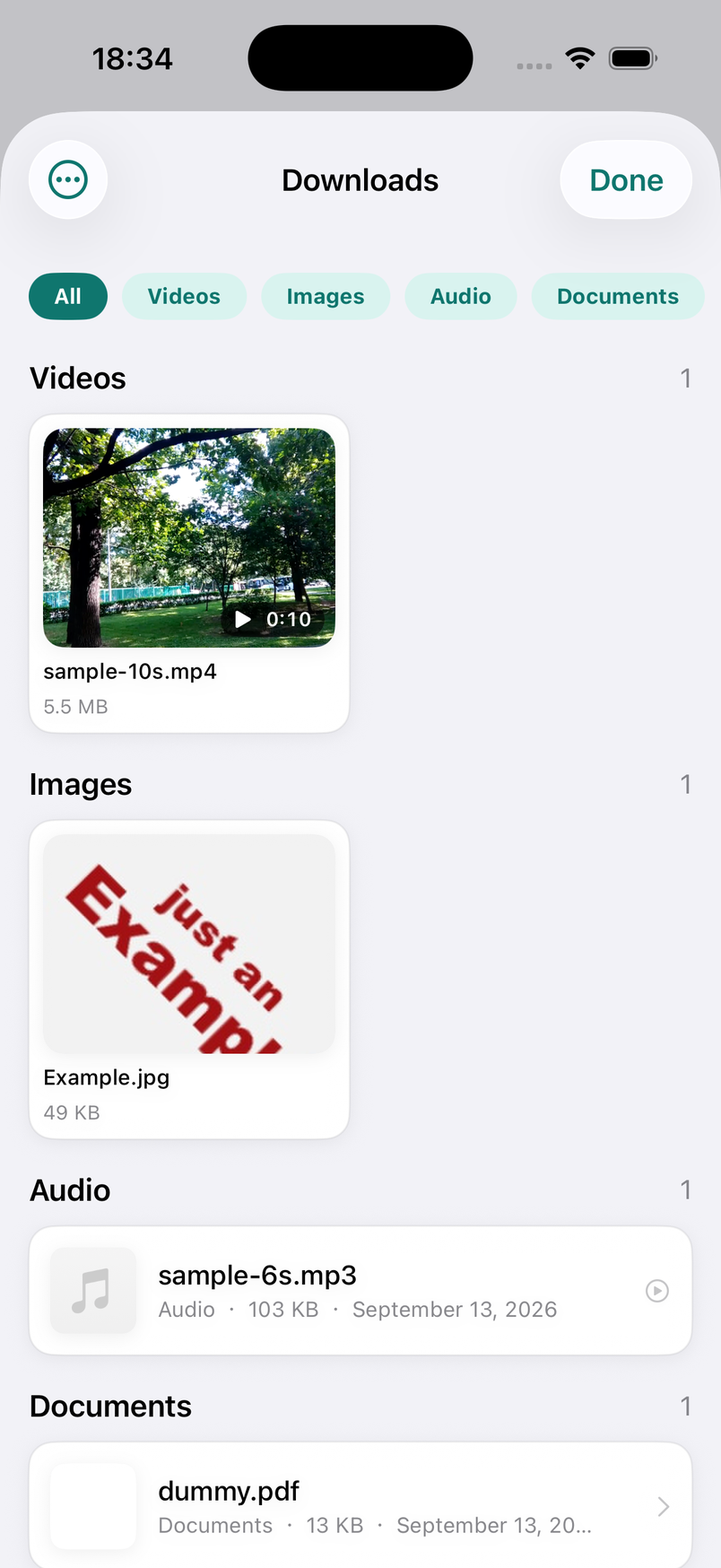
Downloads run in the background and resume after interruption. Downloads in the menu drawer shows transfers at the top and your files below, filtered by type: videos and images appear as large thumbnails (videos with their duration), audio, documents and archives as a list. Tap to preview or play; long-press to share, rename, save an image to Photos, or delete.
Files are stored in Documents/Downloads, visible in the Files app and shareable to any other app. Cellular downloads can be disallowed under Settings › Permissions.
Screenshots
In the page tools drawer, Full-page Screenshot scrolls through the page so lazy-loaded content appears, then renders the whole document as a PNG at your screen's full resolution. Very long pages are saved as several parts rather than shrunk. Screenshot captures just what's on screen.
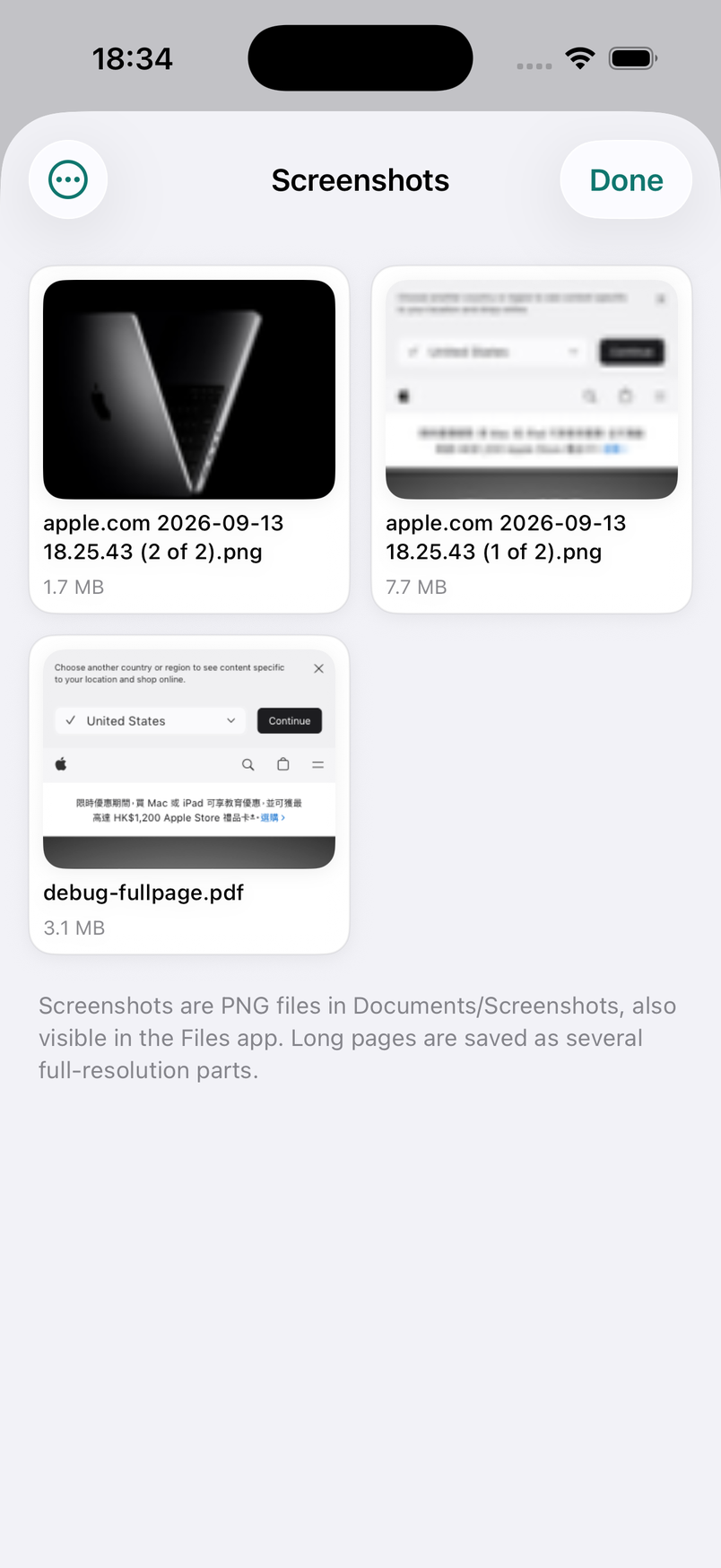
Results land in the Screenshots library (menu drawer) as a two-column grid. Tap to view and pinch to zoom; long-press to share, save to Photos, rename or delete. Files live in Documents/Screenshots and are also visible in the Files app.
Translating a page
Tap Translate in the page tools drawer. With Apple (the default), the text of the page is translated on your iPhone and put back in place — nothing leaves the device. iOS may offer to download a language pack the first time. Tap again to show the original.
If Apple's translation doesn't support the language pair on your device, REFLIB offers to use Google Translate instead; you can also long-press the tile to choose Google directly, or make it the default under Settings › Translation. Google's web translation receives the page address and fetches the page itself, so pages behind a login can't be translated this way. The address pill keeps showing the original site while a translated page is open.
Reading
Reader mode strips a page down to its article: title, text and images, with light, sepia or dark themes and adjustable text size. Turn on Automatic Reader for a site to open its articles in Reader every time.
Read later saves an article to the reading list with an offline snapshot, so it opens even without a connection. Mark items read or unread, or remove them, from the Library.
Printing and PDF
Print in the page tools drawer opens the iOS print panel with the page laid out on pages. Save as PDF produces the same layout as a file you can share or keep. Web pages that call window.print() themselves open the same print panel, just as they do in desktop browsers.
Privacy settings
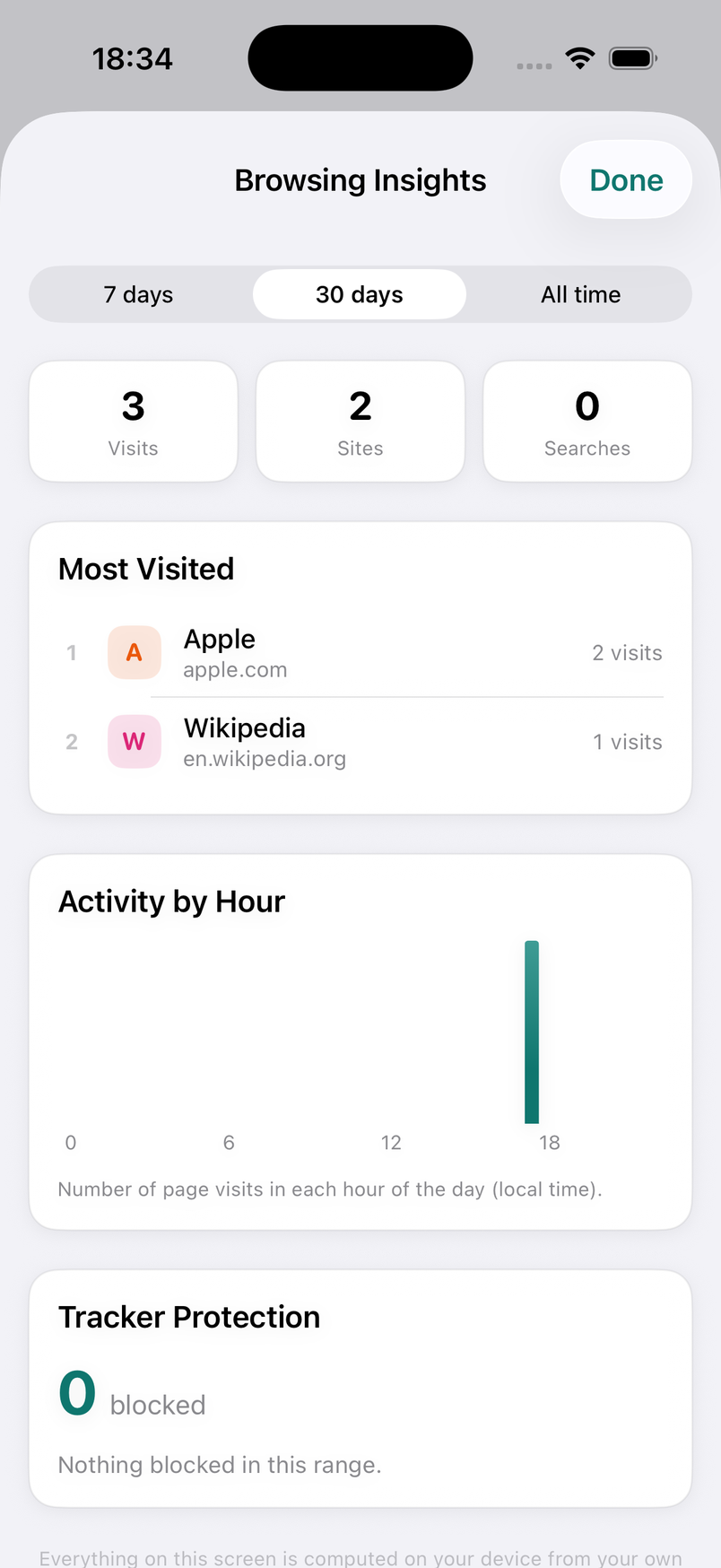
Tracker protection blocks requests to a built-in list of tracking and fingerprinting domains before they load. The list ships with the app and works offline; REFLIB never downloads filter rules. It does not block ads. The right drawer shows how many trackers were blocked on the current page, and Browsing Insights in the menu keeps totals.
Block pop-ups stops windows opened without a tap. Website data lets you see and delete cookies and storage per site, or clear everything. Erase all data in Settings › Clear data removes history, bookmarks, downloads, screenshots, settings and website data in one step.
Permissions
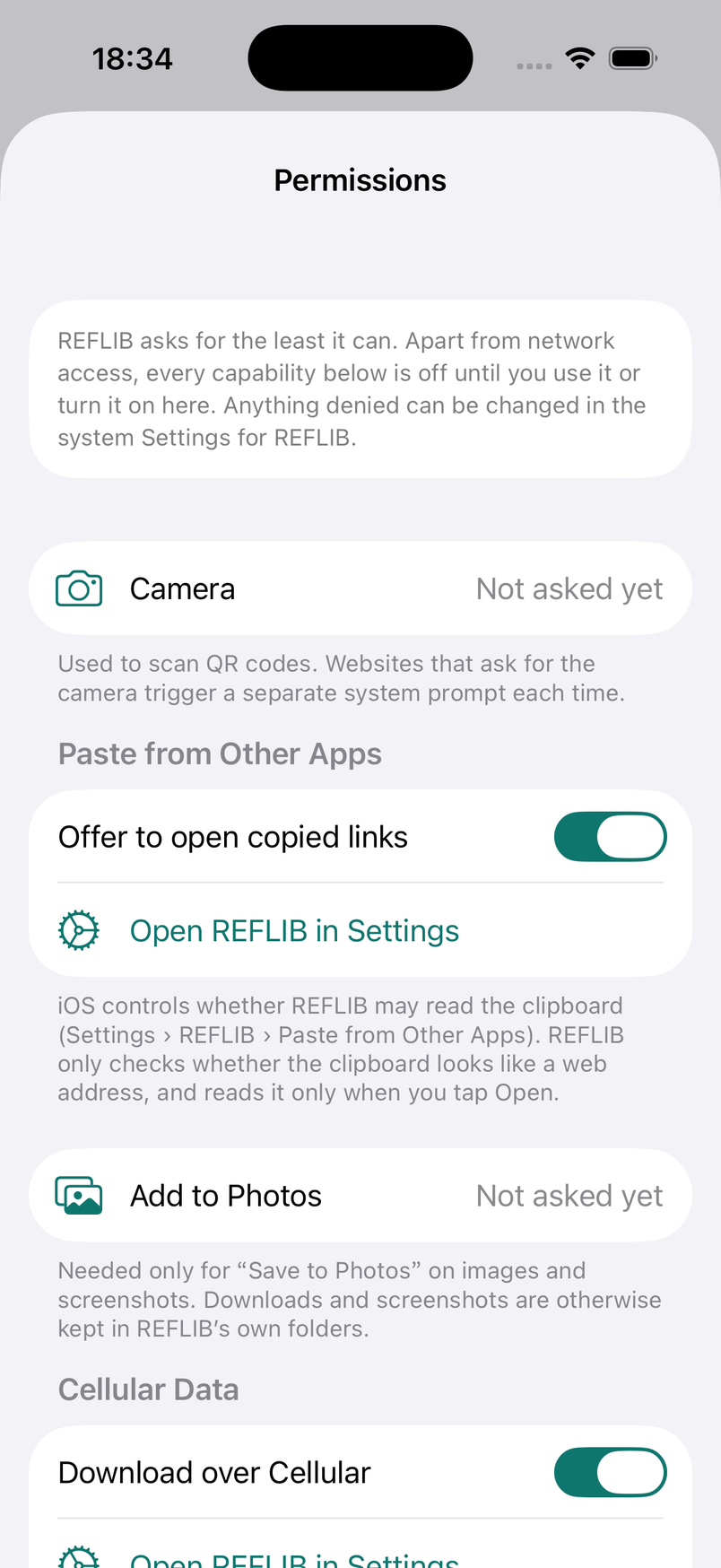
REFLIB follows a least-privilege rule: apart from network access, every capability below is off until you use it. Settings › Permissions lists them with their current status and a button that opens REFLIB's page in iOS Settings when something has been denied.
Camera — scanning QR codes; websites asking for the camera get a separate system prompt. Paste from Other Apps — iOS decides whether REFLIB may read the clipboard; REFLIB only checks whether it looks like a web address and reads it when you tap Open. The clipboard hint can be silenced with Don't Ask Again and re-enabled here. Add to Photos — only for Save to Photos. Cellular data — whether downloads may use it. Notifications — optional 'download finished' notices when the app is in the background. Website permissions — ask each time, or always deny, when a site wants the camera or microphone. Websites cannot get your location: REFLIB doesn't request it.
Import and export
Settings › Import & Export writes your bookmarks, reading list, site settings and optionally history to a JSON file, and reads such a file back. Import Bookmarks from HTML accepts the bookmark file exported by Safari, Chrome, Firefox or Edge; top-level folders are kept and existing addresses are skipped.
Frequently asked questions
Is there a Mac or iPad version? No. REFLIB is built for iPhone only.
Does REFLIB block ads? No. It blocks known trackers; advertisements themselves are left alone.
Can it download videos from a page? Only when the video is a plain file (for example an .mp4 link). REFLIB does not detect or extract streaming media embedded in pages.
Where is my data? On your iPhone, in the app's own folders. Delete the app and it's gone. Nothing is synced or backed up by us; your normal iPhone backup includes it.
Which languages? English and Traditional Chinese (Hong Kong). Web pages can be translated into many more.